






Portal
After we activate the account you will receive an email to create a password.
Login

log in using the link audincportal.com.
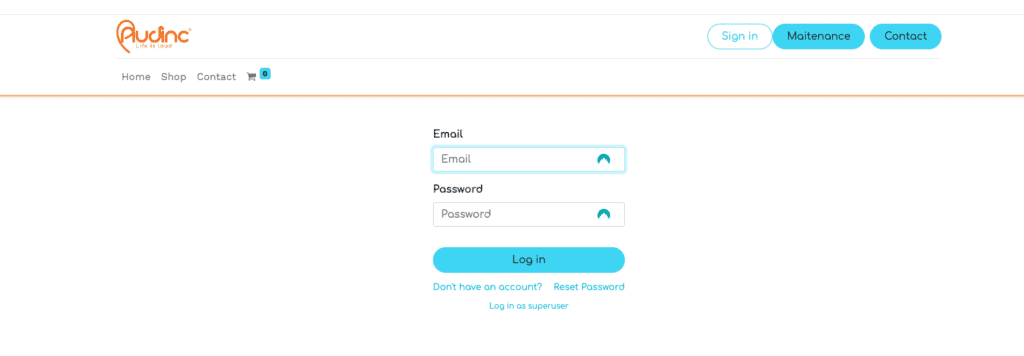
Enter the e-mail address and password associated with the account here.

At the bottom of the page it is possible to adjust the language.
Maintenance overview

In the maintenance overview, you can see in one view all otoplastics users within your organization.
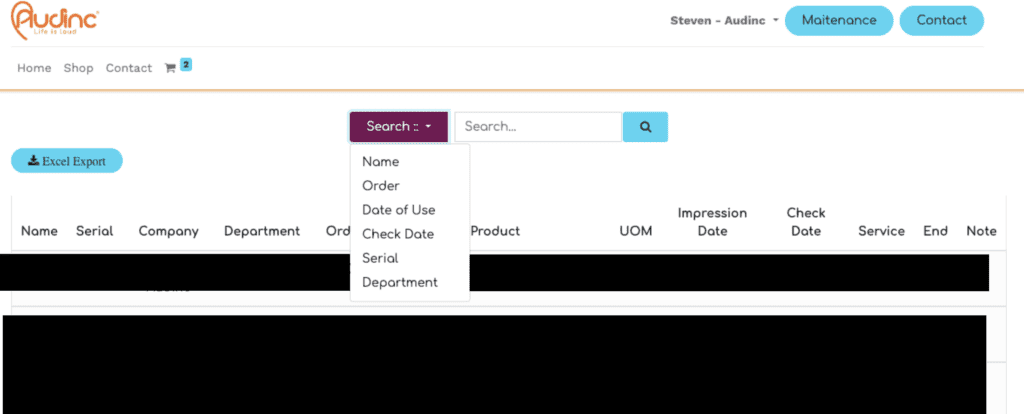
The information we record per user: Name - serial number - company - department* - order number - product details - unit - print date - last check date* - service package* End date service package* - Notes*.
- when applicable
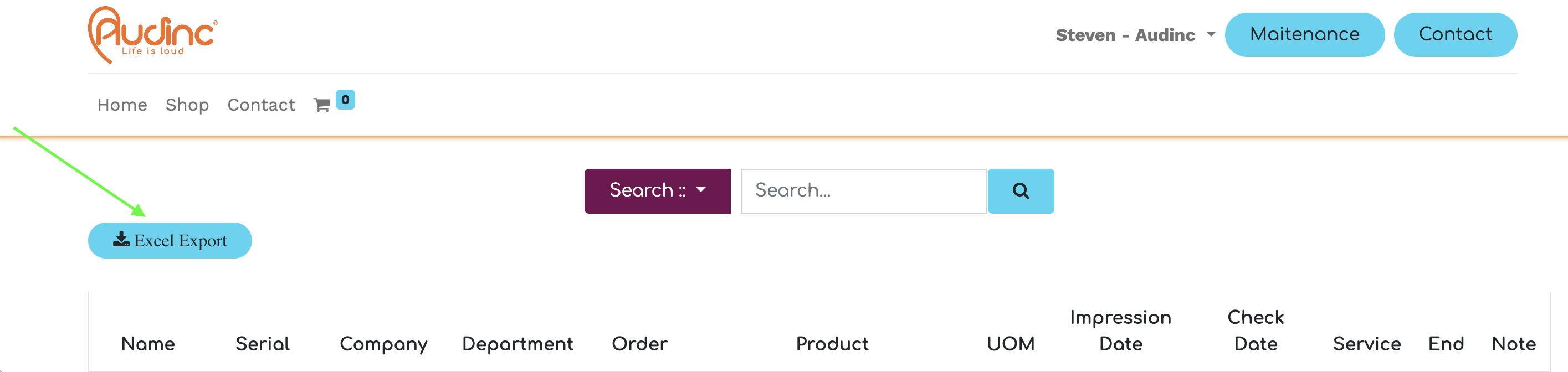
It is also possible to export this overview to an Excel sheet.
Under the heading Shop in the menu you can find all products activated for your account, are you missing any products? Please contact your contact person
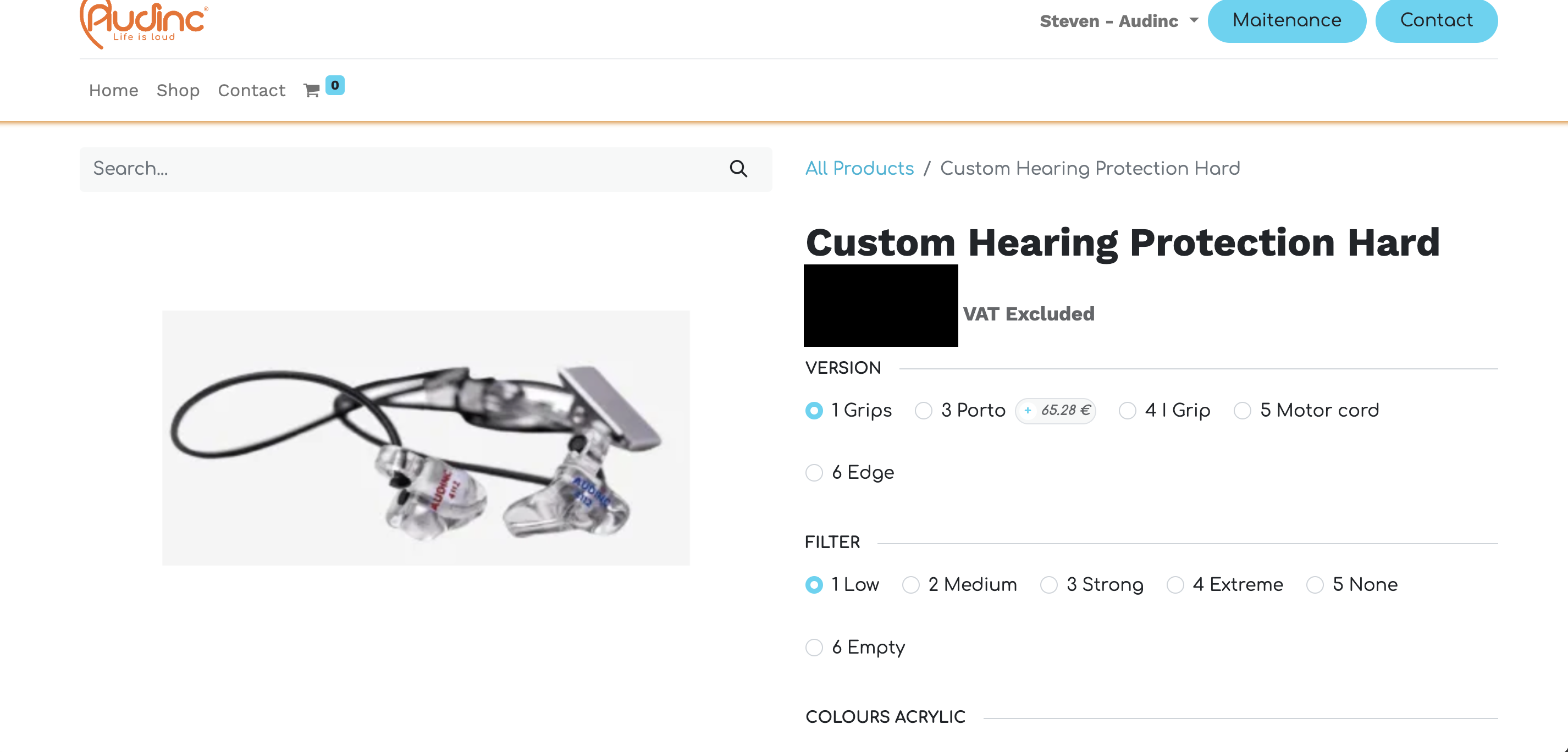
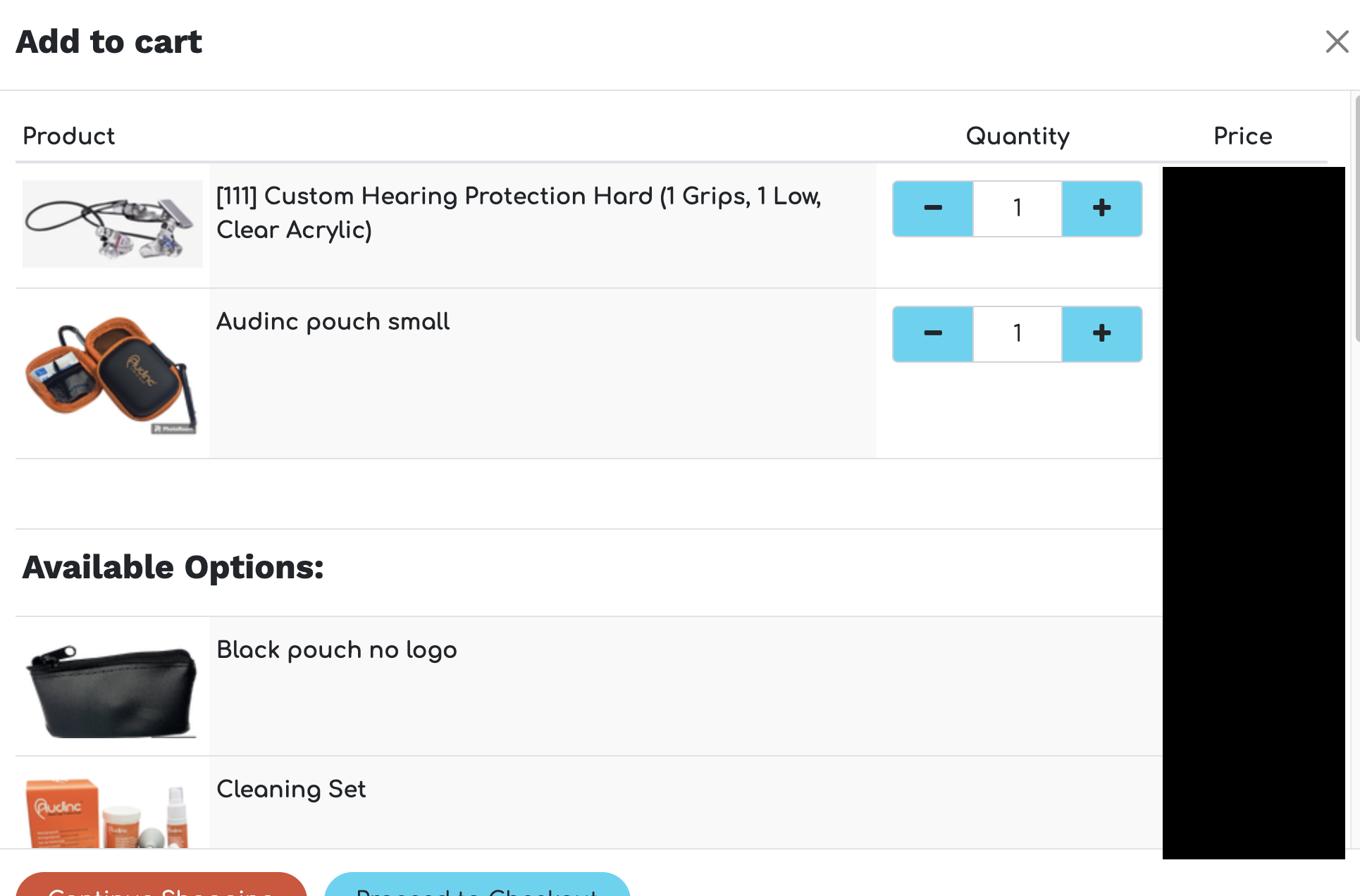
On the product page you can make product choices, adding the product to the shopping cart will bring up another screen of accessories.
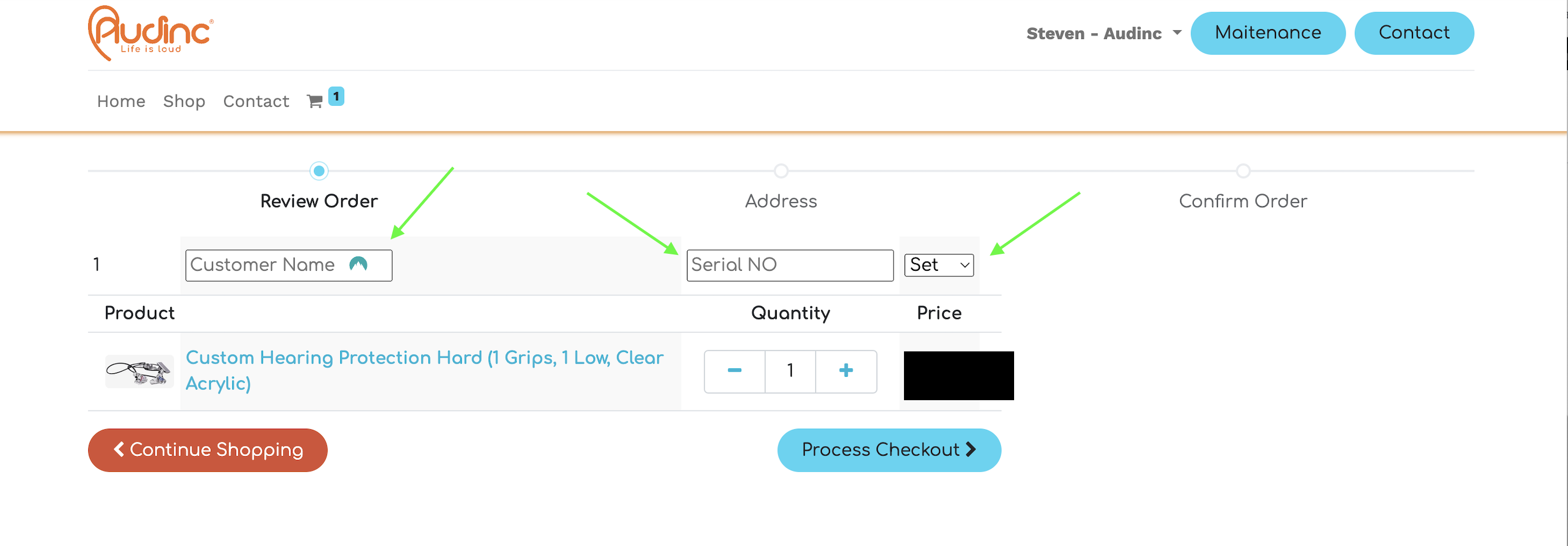
For customized products, a name and number must be entered in the shopping cart. The number is linked to the person’s prints.
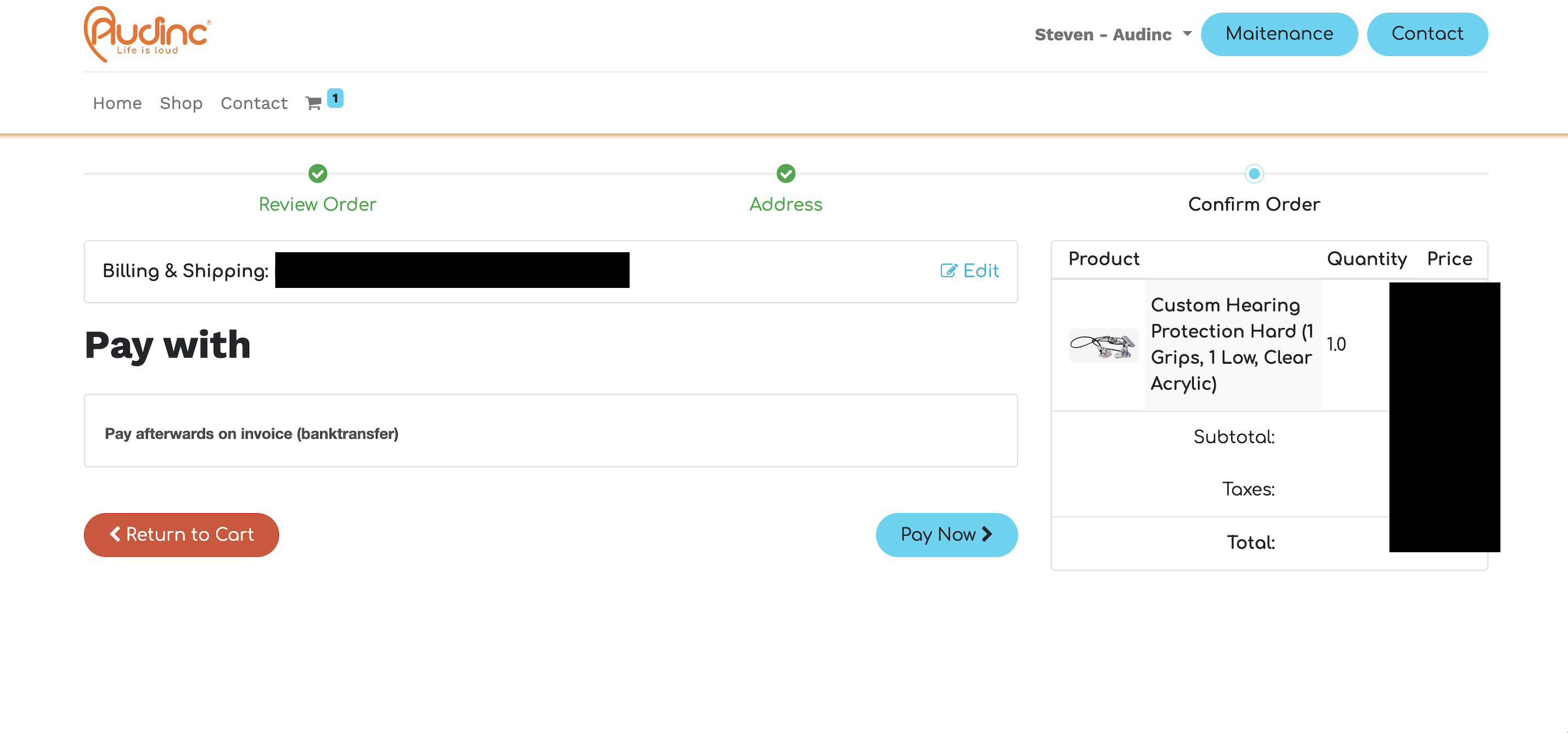
After confirming, you will be sent an order as a draft. Once it has been checked it will be confirmed.
In my account you can see an overview of all draft orders, orders, invoices and tickets.

Maintenance

At the top of the bar is a maintenance button.
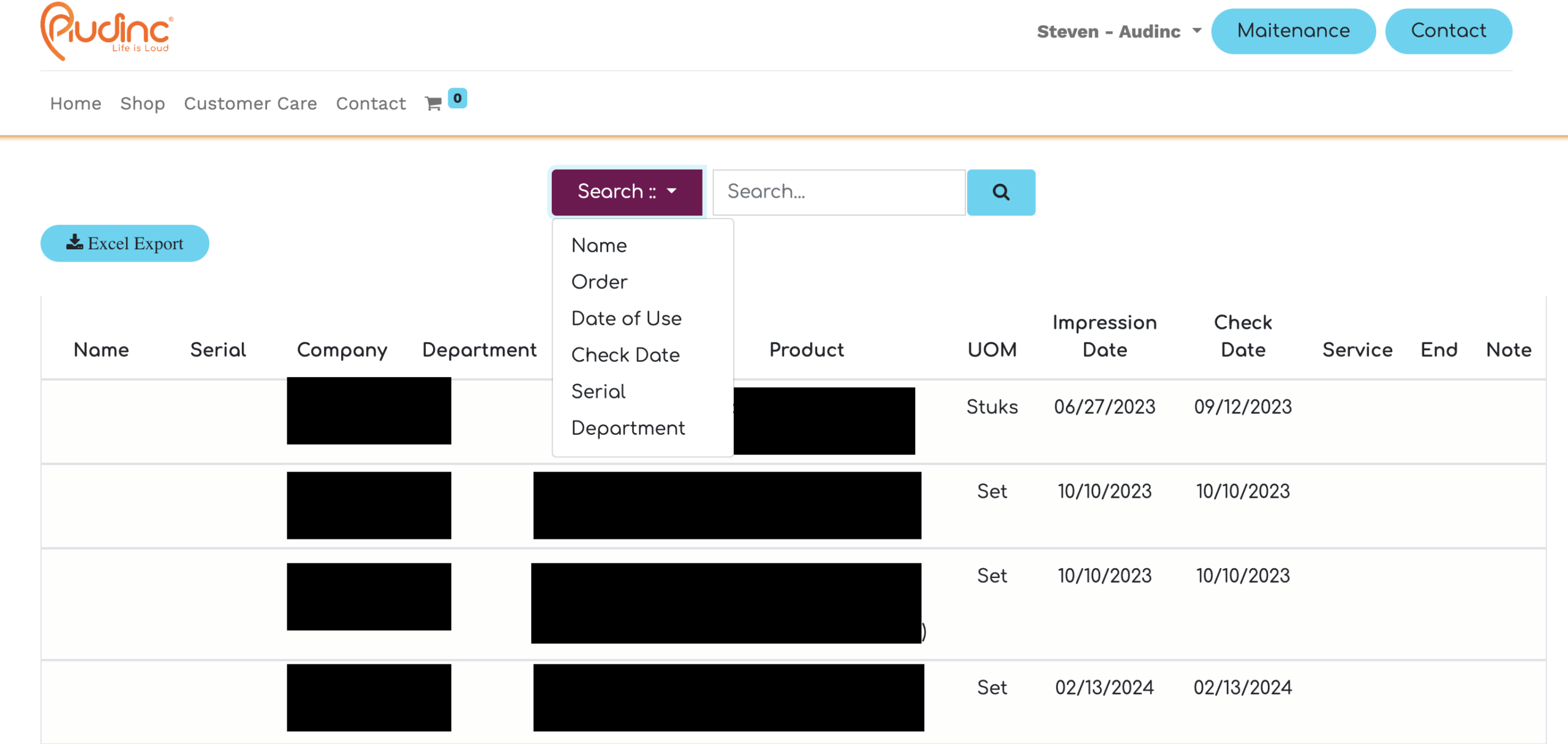
In this overview all customized products are visible. You can filter by first and last name, order number, date of commissioning, any control date, serial number and department.
For a better overview, it is possible to export this list to an Excel file.